Apple Watch isn’t necessarily unusable without an iPhone: what you can do depends on whether you have a Wi‑Fi or mobile network connection, and what you’ve prepared on the watch.
Apple Watch can connect to iPhone using more than just Bluetooth: when needed, it can also use a known Wi-Fi network or, on Cellular models, a mobile network.
Back up your data, check the pairing settings needed for the repair, and protect your passcode. We’ll show you step by step what to take care of before service.
To identify your Apple Watch with confidence, find its model number beginning with A, then check it against Apple’s official model identification list. We’ll show you the steps and what to do if you can’t pair your watch.
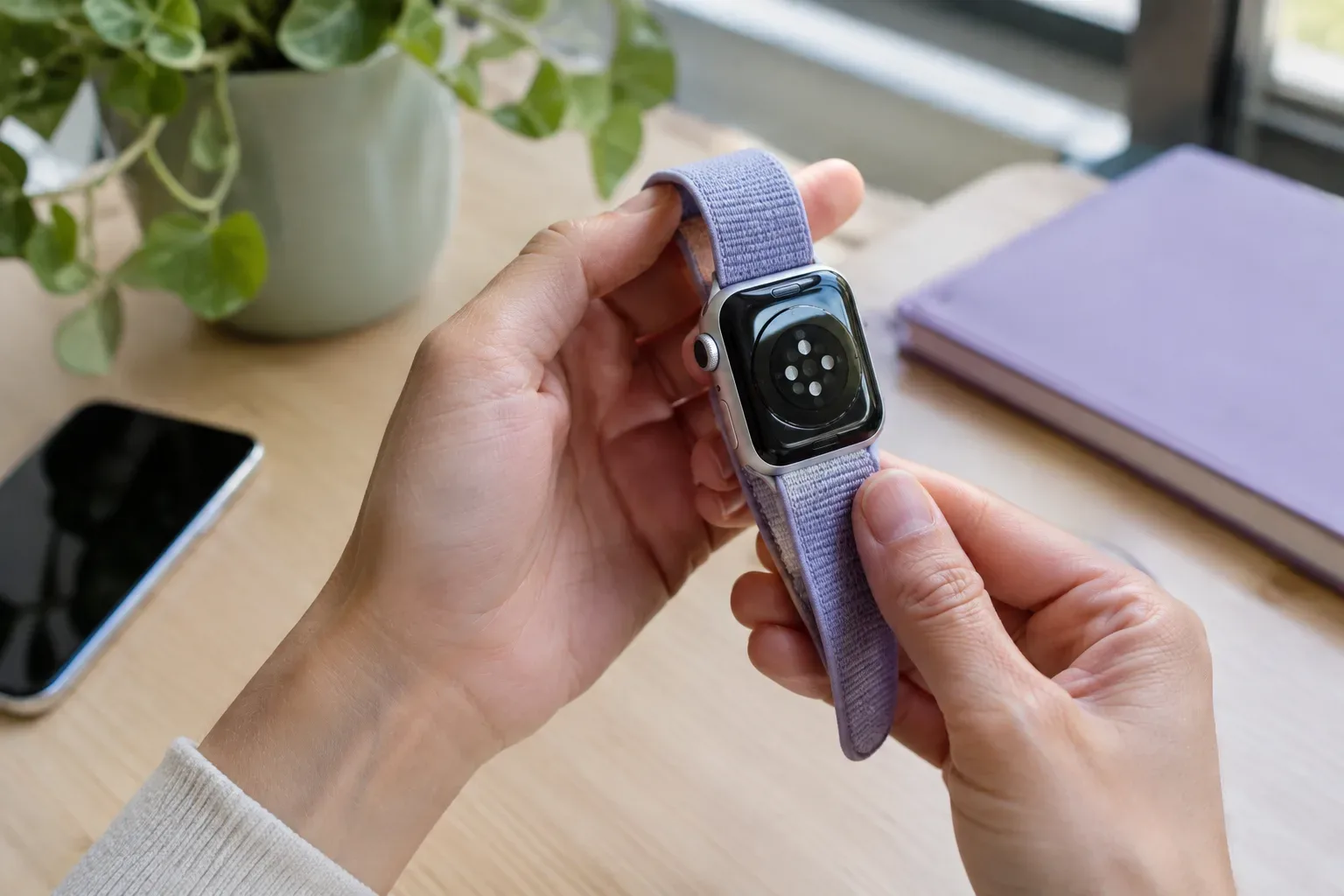
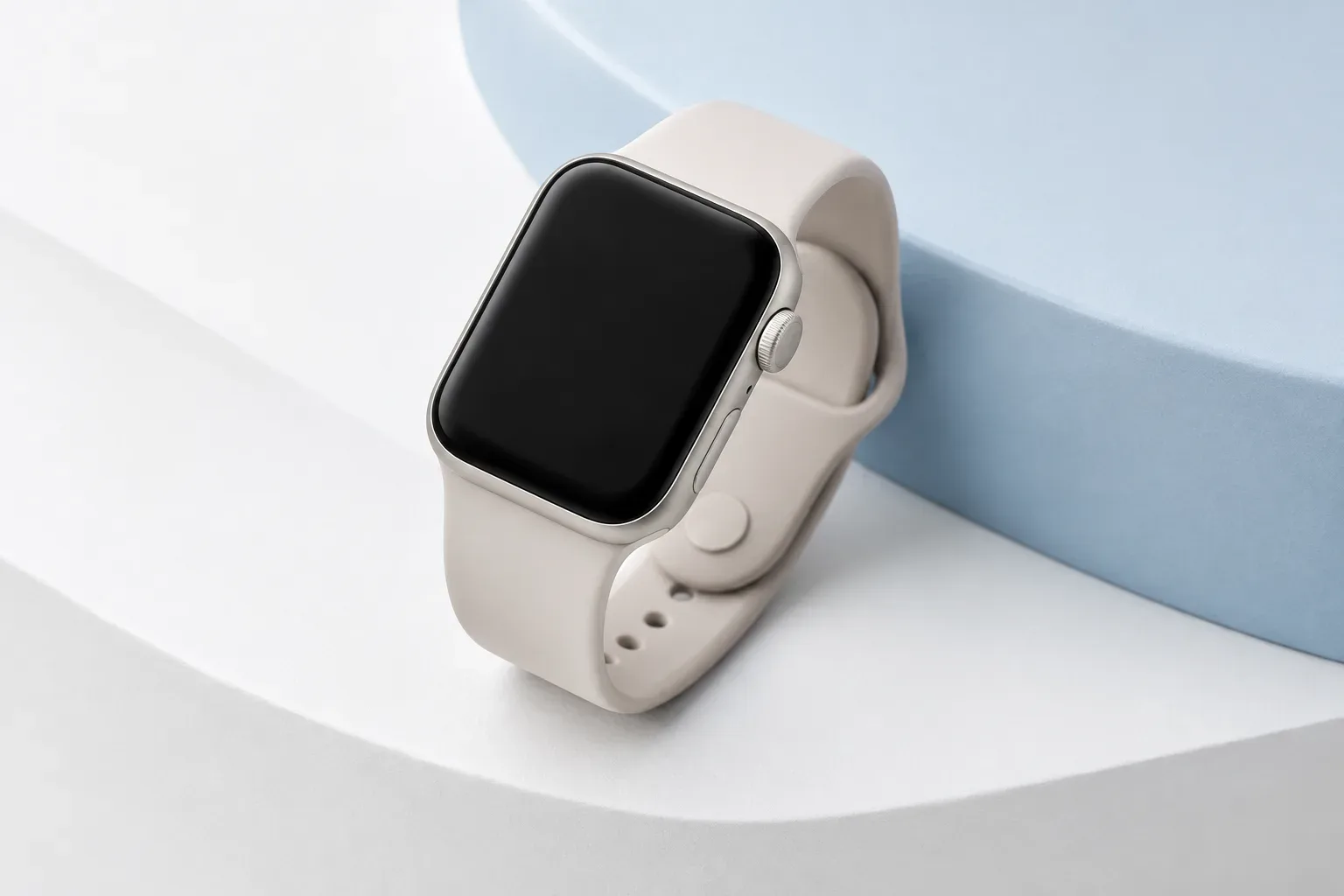
For a comfortable Apple Watch band, first find a type compatible with your case size, then measure your wrist and choose a material and fastening that suit how you’ll use it.
Reduce notification noise without turning everything off: choose notifications by app, use Notification Centre and set up Focus for uninterrupted periods.
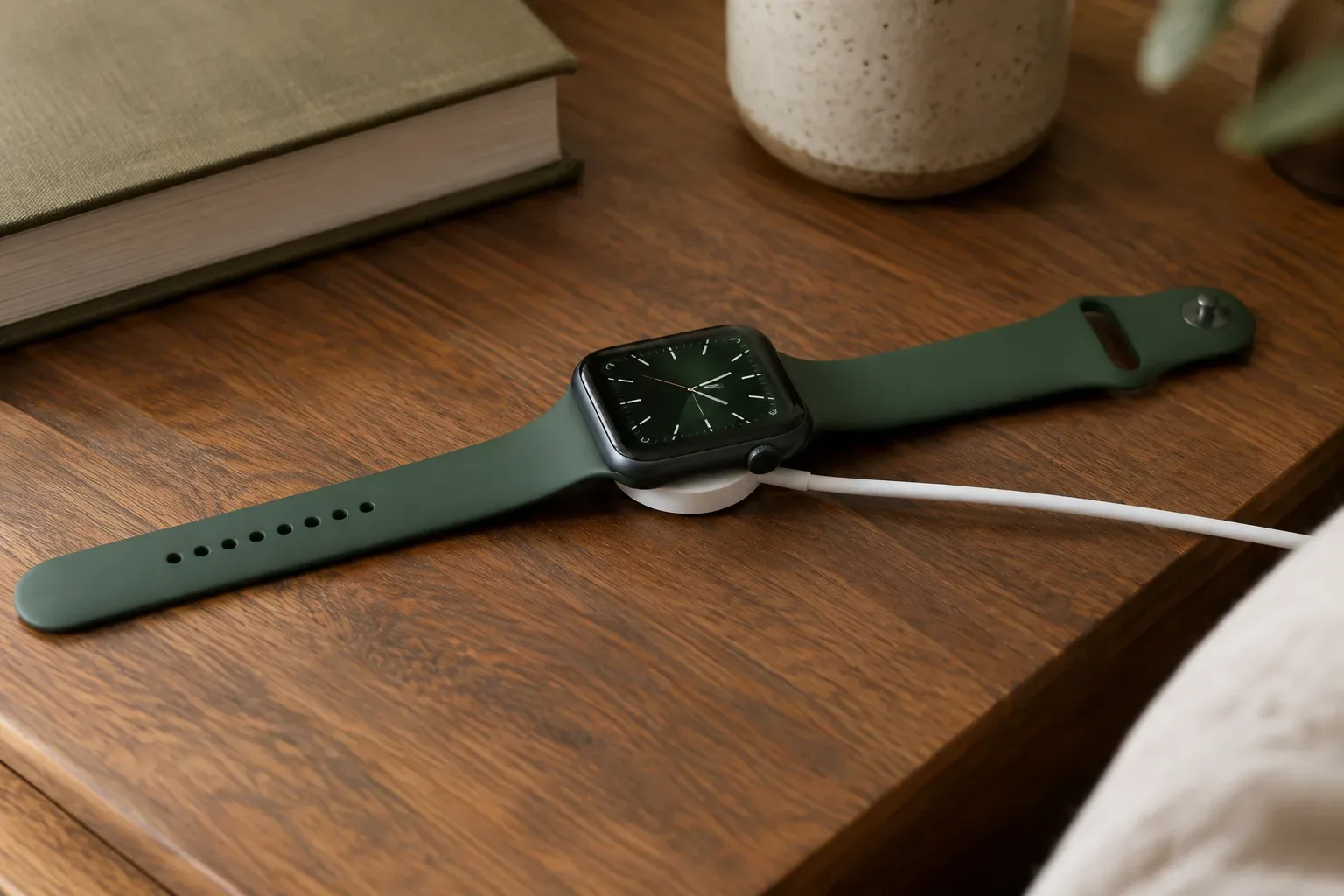
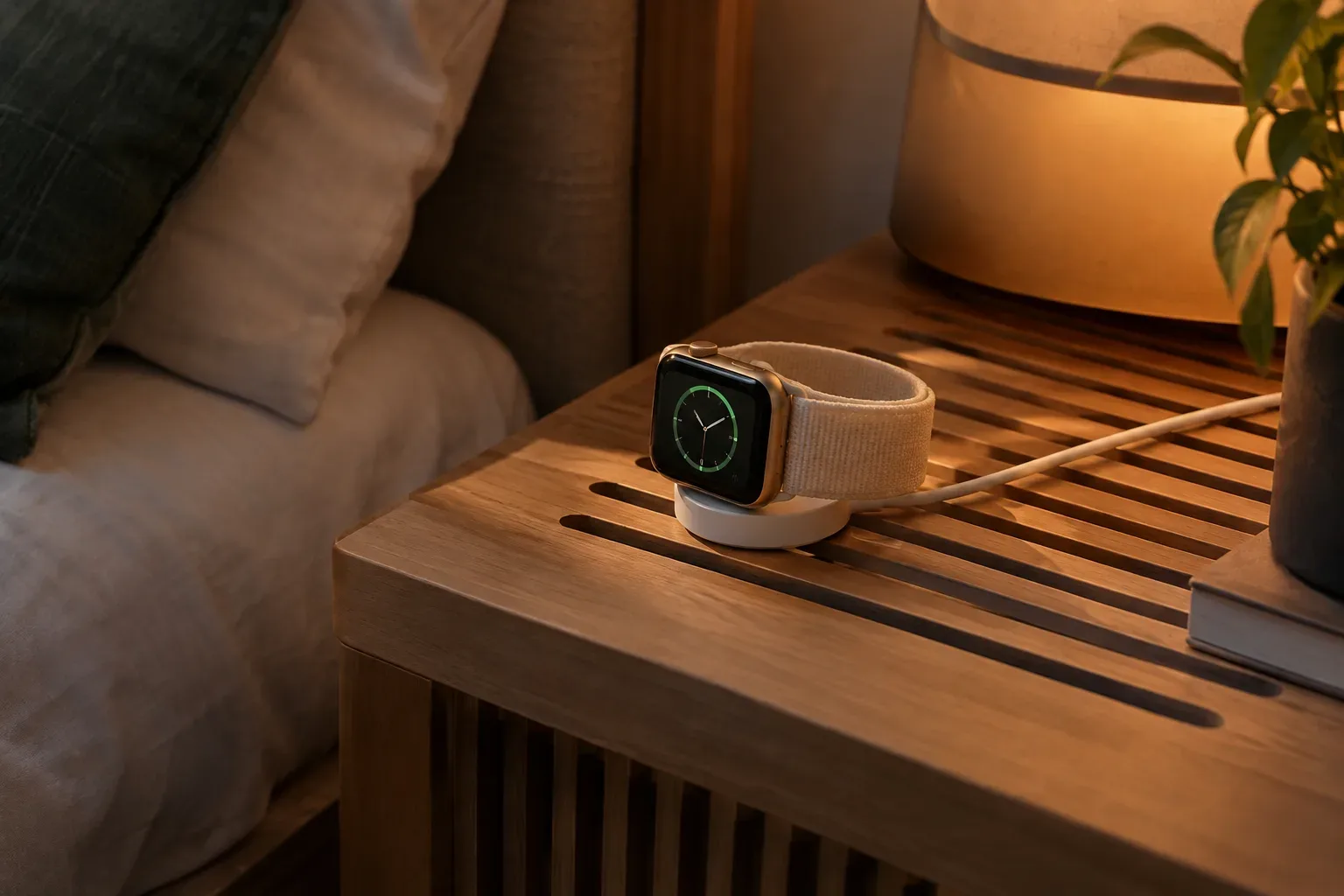
If your Apple Watch isn’t charging, check the power source, alignment, cleanliness and temperature in turn. You can carry out these steps without taking the watch apart.
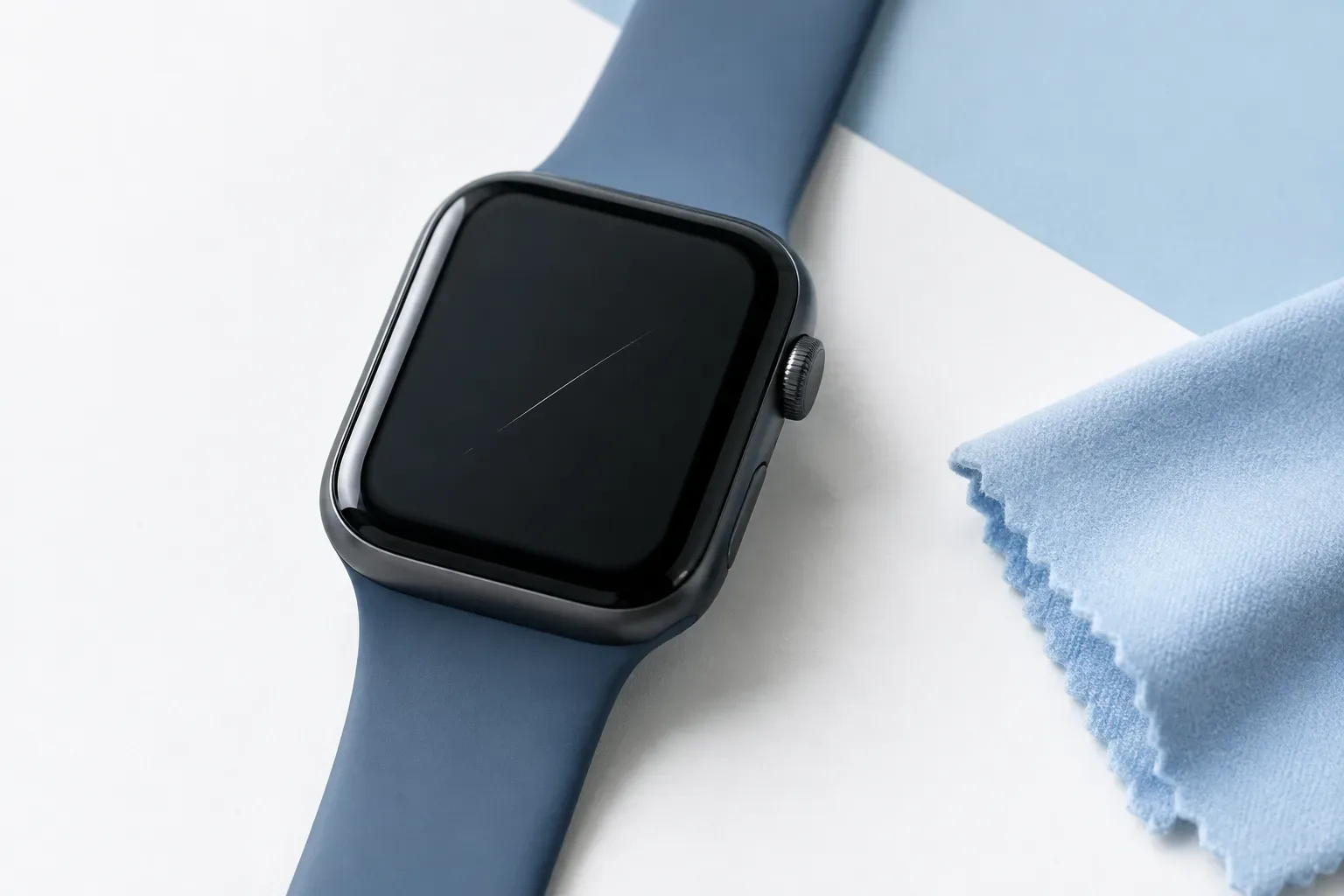
Photograph the mark’s location and appearance, and note the circumstances and any operating symptoms. A guide to documenting a hairline scratch on your Apple Watch display before an assessment.
Telepíts alkalmazást közvetlenül az Apple Watchról vagy a párosított iPhone-ról, kezeld az automatikus letöltést, és távolítsd el a nem használt appokat.
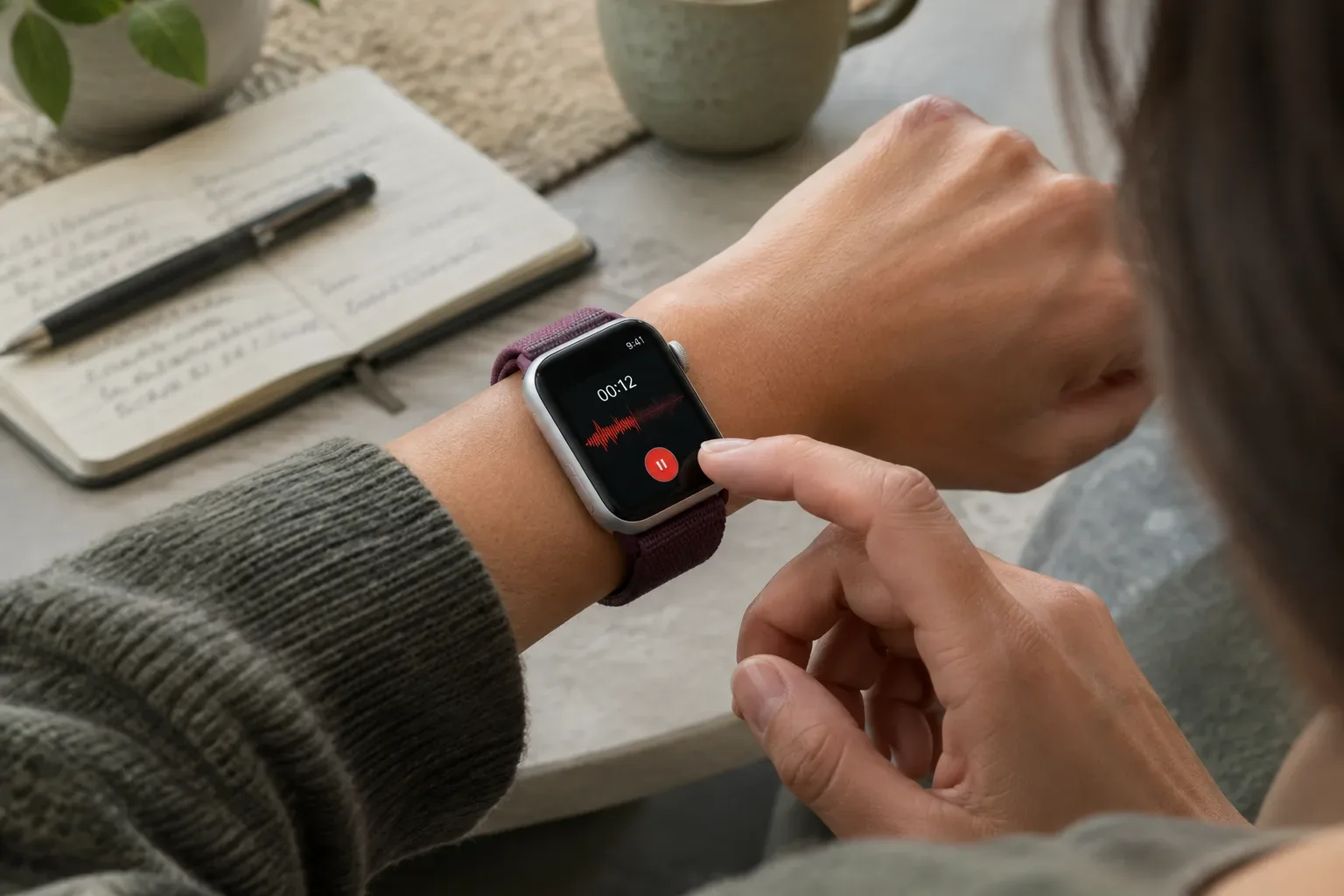
Lépésről lépésre mutatjuk, hogyan készíts hangjegyzetet az Apple Watchon, hallgasd vissza az órán, és ellenőrizd a felvétel szinkronizálását más Apple-eszközökön.
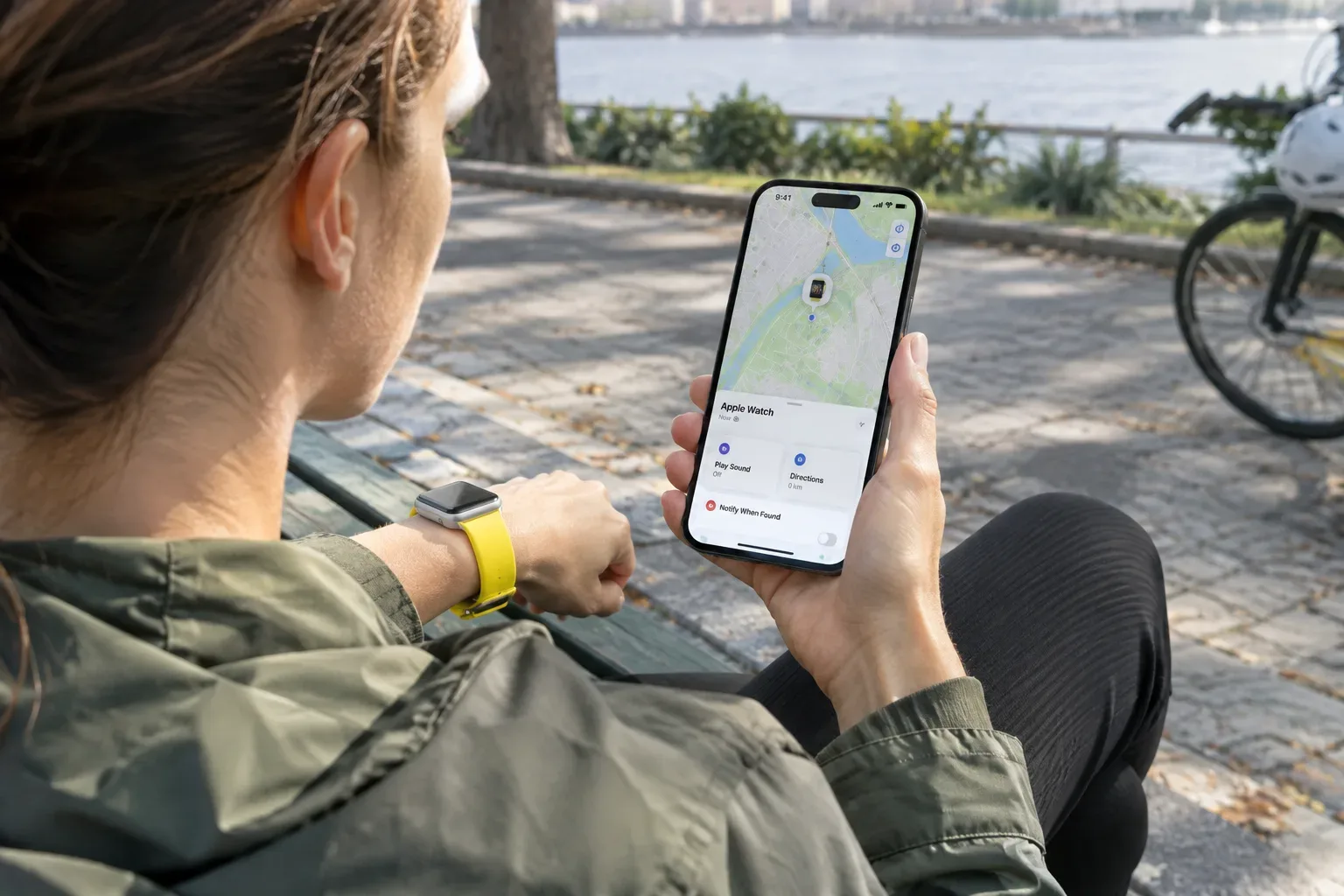
A Lokátor megmutathatja az Apple Watch aktuális vagy utolsó ismert helyét, és hangot is lejátszhat rajta. Mutatjuk a lépéseket és az offline lehetőségeket.