The connection between Apple Watch and iPhone does not rely on just one wireless technology. Depending on the circumstances, the watch can use Bluetooth, Wi-Fi or, on a suitable GPS + Cellular model, a mobile network. The system manages the switch automatically, so you usually do not need to choose the type of connection yourself. The key difference is that Bluetooth is typically used to connect to a nearby iPhone, while Wi-Fi can be useful when the iPhone is no longer within Bluetooth range.
In brief: in what order does the watch connect?
When the iPhone is nearby, Apple Watch typically communicates with it over Bluetooth. Apple describes this as an energy-efficient option. If a Bluetooth connection is unavailable, the watch may try to connect to a compatible Wi-Fi network within reach. On a GPS + Cellular model with a mobile plan set up, a mobile network may also be an option. The details are explained in Apple’s connectivity guide.
This does not mean that the watch uses all three connections at the same time, or that you need to switch between them as you go. The system chooses from the available options. That is why an Apple Watch taken farther away from an iPhone may still have a connection if a suitable Wi-Fi or mobile network is available to it. Exactly what is possible depends on the model and settings.
Bluetooth: when the iPhone is nearby
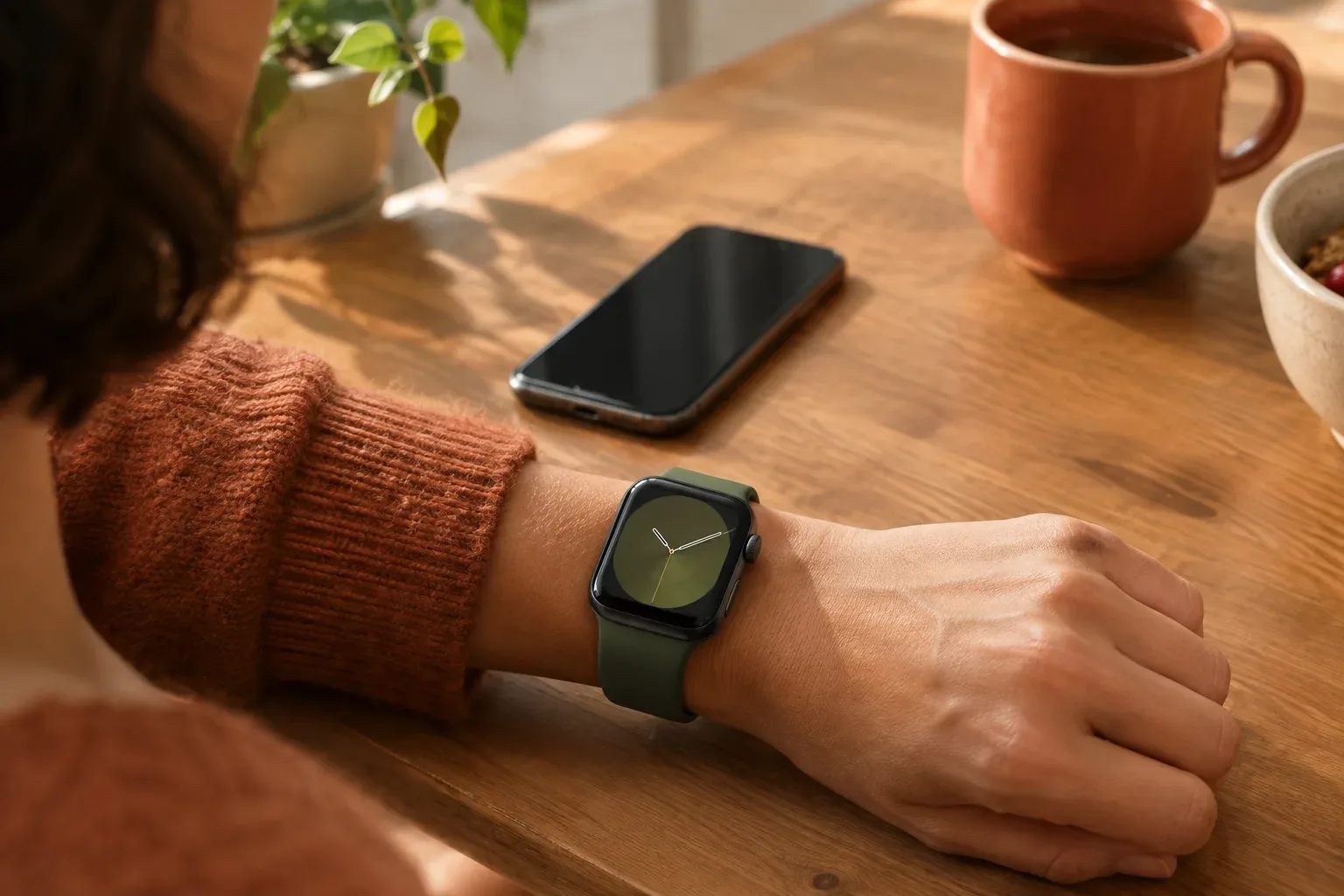
In everyday use, Bluetooth is the usual way to connect over a short distance. If you have your iPhone with you—for example, if it is lying on a desk while you wear your watch—Apple Watch typically connects to it this way. So Bluetooth’s role is not limited to initial pairing: it is also involved in communication between paired devices.
It is important not to assume there is a single distance that applies in every situation. The actual availability of the connection may also depend on the surroundings and the position of the devices; the key point is that if the iPhone moves out of Bluetooth range, the watch may look for another available connection. There is no need to turn Bluetooth off manually to make Wi-Fi “take over”.
If you are setting up your watch for the first time or have moved to a new iPhone, it is worth checking the pairing status first. For step-by-step help, see Pairing Apple Watch with iPhone – the complete guide.
Wi-Fi: when a Bluetooth connection is unavailable
If the iPhone is out of Bluetooth range, Apple Watch may try to connect to a Wi-Fi network. This may be relevant, for example, if you take your watch into another room while your iPhone stays elsewhere, but a compatible Wi-Fi network the watch has previously used is available.
According to Apple’s guide, the watch can use a Wi-Fi network that the iPhone has previously connected to while connected to the watch over Bluetooth. So it may not be enough for a network simply to be visible nearby: the network type and connection history can also matter. If you have set up a new Wi-Fi network and the watch does not connect to it, check whether the iPhone has connected to that network before while paired with the watch over Bluetooth.
The range of supported Wi-Fi networks may vary by model. Apple lists 2.4 or 5 GHz, 802.11b/g/n networks, but Series 5 and earlier models, as well as Apple Watch SE, support only the 2.4 GHz band. The watch does not connect to public networks that require a login, subscription or profile. Check these restrictions in Apple’s Wi-Fi and Bluetooth information, especially if the connection works at home but not on a guest network or in a public place.
Mobile network: only on a suitable Cellular model
If neither a Bluetooth connection nor Wi-Fi is available, a mobile network may be another option—but only with a GPS + Cellular Apple Watch and a properly set-up mobile plan. GPS-only models cannot switch to a mobile network. That is why it is important, when buying or troubleshooting, to know whether your watch is GPS or GPS + Cellular.
Having a Cellular model does not by itself mean that the watch is already using a mobile network: a mobile plan and its setup are also required. If you are not sure exactly which version you have, check the watch’s model number in the guide to identifying your Apple Watch model. Knowing the model helps avoid the misconception that a GPS model can connect to a mobile network.
How can you check whether you have a connection?
You can check the connection status in Apple Watch Control Centre. According to Apple, a red disconnected icon or a red X indicates that the watch is not connected to its paired iPhone. This is a useful indicator, but on its own it does not tell you whether the problem is due to Bluetooth, Wi-Fi, a setting or the availability of the network in question.
- Open Apple Watch Control Centre and check whether you can see a red icon or red X indicating that the connection has been lost.
- If your iPhone is nearby, check that the two devices are paired and not too far apart.
- If your iPhone is not nearby, consider whether the watch can connect to a compatible Wi-Fi network it has used before.
- If you expect to use a mobile network, check that you have a GPS + Cellular model and that a mobile plan has been set up for it.
If the watch does not connect, do not immediately assume that it is faulty: the network may require a login, use an unsupported frequency band, or your particular model may not have a mobile network connection. First check the model and the network requirements, then check the status again.
Common situations at a glance
| Situation | Possible connection | What to bear in mind |
|---|---|---|
| The iPhone is nearby | Typically Bluetooth | The watch can manage the connection automatically. |
| The iPhone is far away, but the watch can reach a known Wi-Fi network | Wi-Fi may be available | The network must be compatible and one the watch has used before. |
| Neither Bluetooth nor Wi-Fi is available | Mobile network on a Cellular model | A GPS + Cellular model and a set-up mobile plan are required. |
| A public network requires a login | The watch will not connect to it | Apple Watch does not handle networks that require this kind of login. |
To sum up: Bluetooth is the usual way to connect to a nearby iPhone, Wi-Fi can be an alternative when Bluetooth is unavailable, and a mobile network is available only on certain watches. You usually do not need to choose the connection method yourself; instead, check that your model and surroundings support the connection you need.
For more details, read Apple’s guide to using Apple Watch without its paired iPhone.