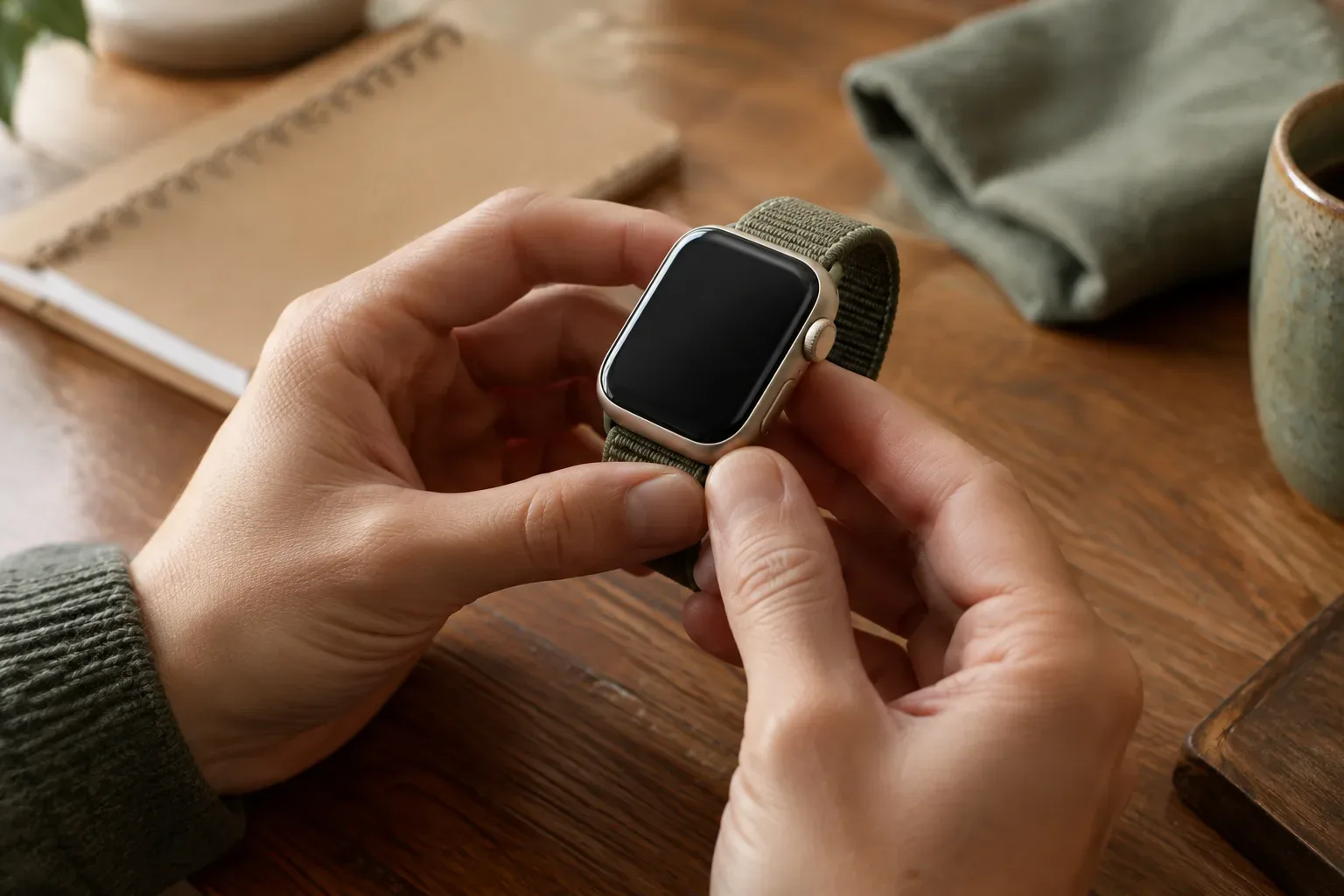
It isn’t always easy to tell which Apple Watch you have on your wrist: several generations can look similar, and the case size alone won’t reveal the exact model. The most reliable clue is the model number beginning with the letter A. You can find it in the Apple Watch app on your iPhone, then check it on Apple’s official identification page. In this guide, we’ll cover how to find it, how to interpret the code, and what to do if you can’t pair your watch.
Model number, part number or serial number?
These identifiers are easy to confuse, even though each serves a different purpose. On the Info page in the Apple Watch app, you’ll usually first see a value beginning with the letter “M”: this is the part number. Tap this field to reveal the model number, which begins with “A” followed by four digits. This is the code you need to look up in Apple’s model identification list.
Don’t treat the device name or watchOS version as a substitute for the model number. On their own, they don’t tell you for certain exactly which Apple Watch model you have. Similarly, the case size and appearance can only provide clues: watches with a similar size or shape may belong to different models. Identification is based on the A-number and the matching entry in Apple’s list. Apple’s guide explains model identification numbers.
How to find the model number beginning with A
Your watch needs to be paired with your iPhone to check it this way. Apple’s instructions take you to the Info page in the Apple Watch app:
- Open the Apple Watch app on your iPhone.
- Tap the My Watch tab.
- Choose General, then About.
- Find the Model Number field. A part number beginning with M may appear first.
- Tap the model number field. The displayed value will change to a code beginning with A followed by four digits.
- Write down the code exactly, then look it up on Apple’s identification page.
It’s worth checking the code character by character: a typo or missing digit could lead to a different result or make the search more difficult. The code you need is therefore not the M-number part number shown first, but the A-number model number that appears after you tap it. The Apple Watch identification support page also explains these steps.
How to check the code on Apple’s website
Open Apple’s official identification page listing Apple Watch models and find the A-number you wrote down. The matching entry will tell you which model it belongs to. Along with the identifier, the page may list other details, such as case size, finish or regional variant. Use these details to confirm a match, not instead of the A-number.
The same model family may have several A-numbers, for example because of different regional variants. So don’t stop at the first result that looks similar: check the complete code and read the entry that goes with it. If the case size or finish doesn’t match what you see on your watch, check whether you’ve opened a different, similar result.
The identification page is also useful if you need to know the exact model before buying, choosing an accessory or arranging a repair. For example, when choosing a band, the case size may be important for checking compatibility first; see the guide to Apple Watch band sizes and choosing a band.
What if you can’t pair your watch?
If your watch isn’t paired with your iPhone, you can’t follow the steps in the Watch app. In that case, don’t try to identify the generation with certainty based only on the case shape or size. Check Apple’s identification page: it also lists older models, and the images and descriptions can help narrow down the possibilities.
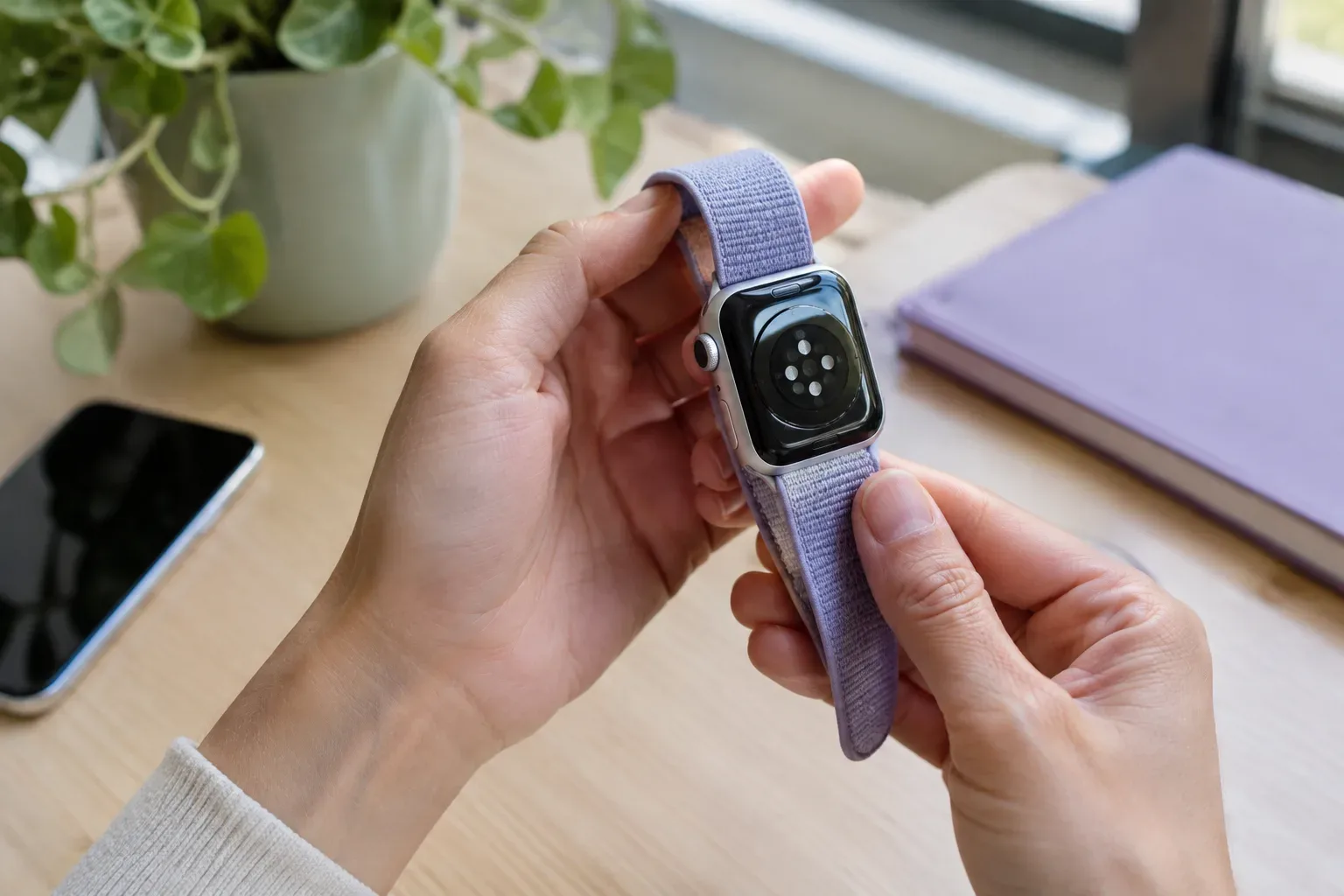
The size and other markings on the back of the case can also offer clues, but Apple describes the iPhone Watch app as the way to check the A-number. If you manage to pair the watch later, return to the Info page and check the model number. Until you have the exact A-number, treat an identification based on external features as provisional, not as a definite model identification.
Frequently asked questions and checking tips
Should I enter the code beginning with M on Apple’s website?
No. Look for the model number beginning with A that appears after you tap the field. The M-number is the part number, so it’s easy to write down the wrong code if you don’t tap the field.
Does the case size tell me the generation?
Not reliably. Size can be useful as a cross-check, but on its own it doesn’t identify the model precisely. First find the model in Apple’s list using the A-number, then compare the other details in the entry with your watch.
Can I identify my Apple Watch by its software version?
The watchOS version alone is not a substitute for checking the A-number. If you need the exact model, use the model number and Apple’s official list rather than relying only on the software running on the watch.
In short: open General > About in the Watch app, tap the M-number part number, then check the A-number that appears against Apple’s model identification list. This method is more reliable than drawing conclusions from similarities in appearance or the case size. Find more Apple Watch guides in the Care knowledge base.
Sources and further information
- Identify your Apple Watch - Apple Support (HU)
- https://support.apple.com/hu-hu/docs/watch
- https://support.apple.com/hu-hu/108040
- https://support.apple.com/hu-hu/118490
- https://support.apple.com/hu-hu/102772
- https://support.apple.com/hu-hu/108926
- https://support.apple.com/hu-hu/guide/watch/apdde4d6f98e/27/watchos/27
- https://support.apple.com/hu-hu/109015
- https://support.apple.com/hu-hu/102858
- https://support.apple.com/hu-hu/111848
- https://support.apple.com/hu-hu/guide/watch/-apdde4d6f98e/watchos
- https://support.apple.com/hu-hu/guide/watch/welcome/watchos
- https://www.apple.com/shop/Catalog/in/Images/Legal_Metrology_Product_Declaration.pdf
- https://www.apple.com/recycling/recycler-guides/pdf/products/apple-watch/Apple_Watch_Series_8_Recycler_Guide_English.pdf
- https://www.apple.com/recycling/recycler-guides/pdf/products/apple-watch/Apple_Watch_Series_2_3_Recycler_Guide_English.pdf