If your Apple Watch isn’t charging, the watch itself may not be at fault: the problem could be with the power source, cable or alignment. You can carry out the checks below at home without opening the watch. Work through them in order, changing just one thing at a time so it’s easier to see what helped.
If the watch or charger is visibly damaged, unusually hot, or may have been exposed to liquid, don’t force it to charge. In that case, it’s safer to stop trying and ask for help.
1. Check the power source and charging cable
First, check that the charger is actually receiving power. Push the charging cable fully into the adapter, then plug the adapter into a working power socket. If possible, try another socket too. A loose connection or faulty power source can make it seem as though the watch isn’t responding.
Where possible, use the Apple magnetic charging cable that came with the watch. If you’re using a charger from another manufacturer, look for the “Made for Apple Watch” mark on it. When testing, if available, try a different Apple Watch magnetic charging cable and a different USB power adapter separately. This can show whether the watch behaves differently with one of the accessories, but this alone won’t identify the cause of the problem. Apple also recommends checking the charging connection in its [troubleshooting guide for power and charging issues](https://support.apple.com/en-gb/108927), while its [guide to chargers](https://support.apple.com/en-la/118474) can help you identify charger types.
2. Align the watch with the charging puck
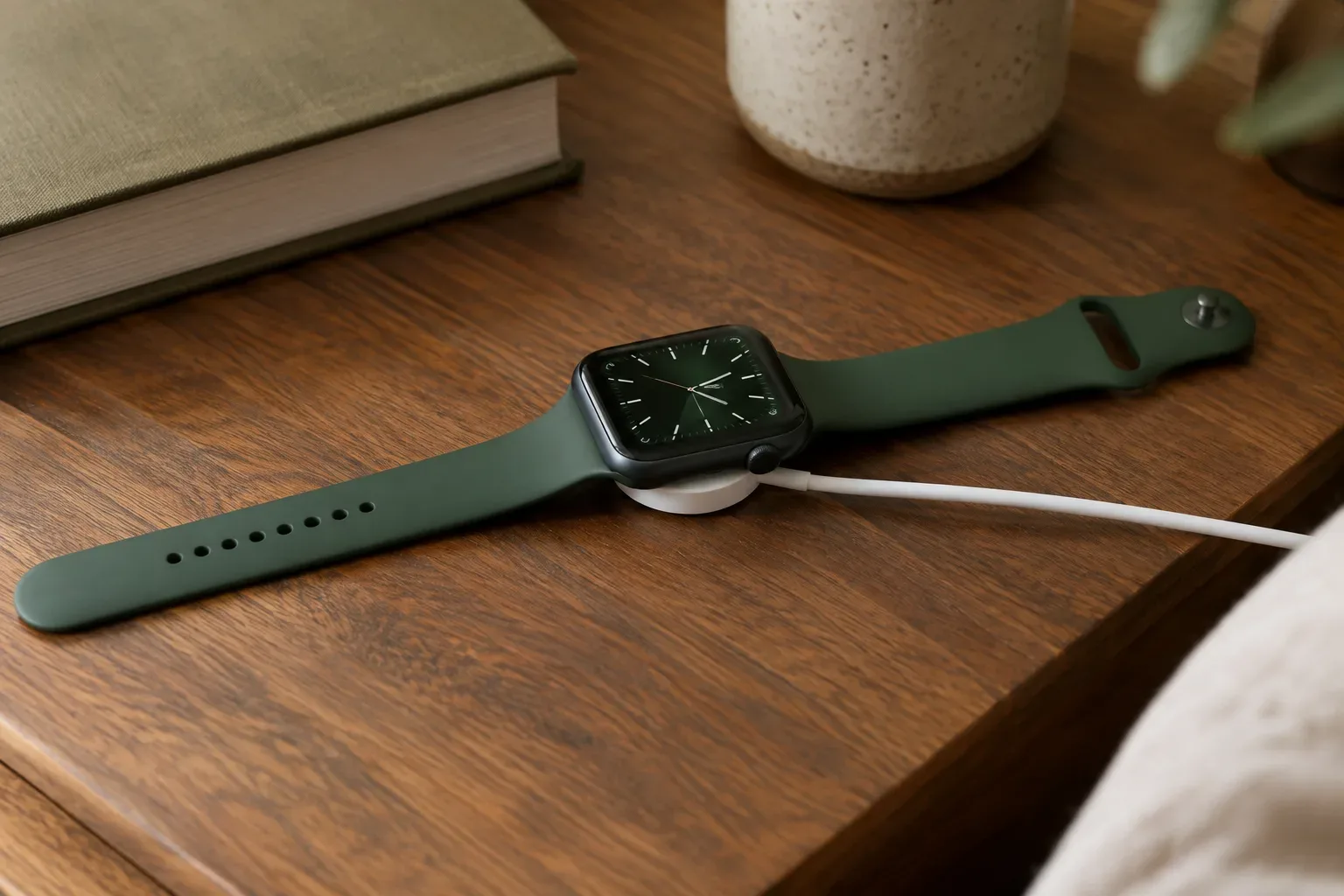
Take the watch off your wrist, then place it on the charger so that the back of the watch sits against the magnetic charging puck. The magnets help with alignment; when charging, a lightning bolt icon appears on the display. If you can’t see it, lift the watch off and place it back on the charger. Also check that there’s no protective film left on the charger or the back of the watch.
If you’re using a magnetic charging dock or a MagSafe Duo Charger, the watch case may affect how it sits on the charger. Try positioning it at a different angle, or remove the case if you can do so easily and safely. Don’t force the watch onto the charger. Apple’s [charging troubleshooting guide](https://support.apple.com/en-gb/108927) explains alignment and the charging icon in more detail.
3. Clean it gently, then let it dry
If you see dirt on the back of the watch or the charging puck, first disconnect the watch from the charger. Wipe the back of the watch with a soft, non-abrasive, lint-free cloth, then wait until it is completely dry. Check the charger surface too, and put the watch back on only when it is dry.
Don’t use heat, compressed air, abrasives or cleaning products, and make sure no liquid gets into any openings. Apple provides a [separate guide](https://support.apple.com/en-ie/108893) to cleaning. If the watch has got wet, don’t put it on the charger until it has dried; water resistance doesn’t mean you can ignore moisture before charging.
4. If the battery is flat, leave it on the charger for a while
If the display is blank, the charging indicator may not appear straight away. If the battery is completely depleted, connect the watch to the charger and leave it there for up to 30 minutes. It may take that long for the charging icon to appear or for the watch to turn on. While you wait, check that the cable hasn’t come loose and that the watch is sitting securely on the charger.
If the watch still doesn’t respond after 30 minutes, that doesn’t prove that a particular component is faulty. Continue with the following checks, but don’t take the device apart.
5. Take the temperature into account
Charging may slow down or pause if Apple Watch is too hot or too cold. If the watch has been in direct sunlight, somewhere warm or in a cold environment, move it to a place at normal room temperature and wait for it to cool down or warm up. Don’t cover it while it’s charging. If a red thermometer icon appears, take it off the charger and let it cool down.
According to Apple’s temperature guidance, ambient temperature can affect use and charging; its [temperature information](https://support.apple.com/en-us/108766) explains what to do. Don’t try to cool the watch quickly in a refrigerator, and don’t put it next to a direct heat source.
6. Try a force restart if the watch isn’t responding
If the watch isn’t responding properly and the checks above haven’t helped, you can also try a force restart. Press and hold the side button and Digital Crown at the same time for at least 10 seconds, until the Apple logo appears. Don’t do this routinely on a watch that is working; Apple recommends it not as a first step, but when the device isn’t responding.
If the display appears after the restart, put the watch back on the charger and check whether the lightning bolt icon is visible. If it still won’t charge, don’t repeat the button combination over and over: move on to asking for service support.
7. When should you stop trying at home?
Ask for expert help if the watch or charger is visibly damaged or unusually hot, or if charging still won’t start with another cable and adapter, with the watch properly aligned, clean and dry. Don’t try to open the watch or use a DIY repair method: home checks can’t reveal exactly which component or process is causing the problem. After basic checks have failed, Apple recommends getting further support in its [charging troubleshooting guide](https://support.apple.com/en-gb/108927).
An important exception is when charging stops at 80%: this doesn’t necessarily mean there’s a fault. Optimised Battery Charging or a set charge limit may delay or limit further charging. How it works may also depend on your settings and the system running on the watch; you can read more in Apple’s [battery charging guide](https://support.apple.com/guide/watch/charge-the-battery-apd2b717523a/watchos).
If your watch shows another kind of damage too, what to do next may differ; for example, this guide may be useful for documenting a hairline scratch on the display: what to look for before an assessment
Find more practical guides in the Apple Watch knowledge base and under Faults and troubleshooting.
Sources and further information
- If your Apple Watch won’t turn on or won’t charge – Apple Support (UK)
- How to clean your Apple Watch – Apple Support (IE)
- Keep Apple Watch within acceptable operating temperatures – Apple Support
- Charge the battery on Apple Watch – Apple Support
- https://support.apple.com/en-us/108766
- https://support.apple.com/en-gb/108927
- https://support.apple.com/en-us/122696
- https://support.apple.com/en-tj/108927
- https://support.apple.com/guide/watch/charge-the-battery-apd2b717523a/watchos
- https://support.apple.com/en-tm/guide/watch/apd521a8a902/watchos
- https://support.apple.com/en-la/118474
- https://support.apple.com/ja-jp/guide/watch/apd521a8a902/27/watchos/27
- https://support.apple.com/ja-jp/108927
- https://support.apple.com/en-kg/guide/watch/apd748b87e2a/watchos
- https://support.apple.com/en-my/108766