To use an Apple Watch for the first time, you need to pair it with a compatible iPhone. The process starts on the iPhone: the phone recognises the watch and guides you through setup. This guide covers what to do beforehand, camera and manual pairing, and how to resolve the most common issues.
Before pairing: checks to make
Which iPhones a particular Apple Watch can be used with depends on the watch model and its software. If the phone or watch needs an update, you may be notified during setup. You can check the exact requirements in Apple’s guide to setting up an Apple Watch.
- Update your iPhone to the latest available version of iOS.
- Turn on Bluetooth and connect to Wi-Fi or a mobile network.
- Unlock your iPhone and keep the watch nearby.
- If the watch won’t turn on, place it on its charger.
- Have your Apple Account password ready. If the watch has been used before, you may also need its passcode.
If you’re not sure exactly which watch you have, checking the model number can make it easier to look up compatibility. Our guide to identifying your Apple Watch model can help.
How to pair an Apple Watch with an iPhone, step by step
- Turn on the watch. Press and hold the side button until the Apple logo appears.
- Hold it near your iPhone. When a message prompting you to set up the watch appears on your phone, tap Continue.
- Start manually if the message doesn’t appear. Open the Apple Watch app on your iPhone, tap All Watches, then tap Add Watch.
- Choose who you’re setting it up for. For your own watch, select Set Up for Myself.
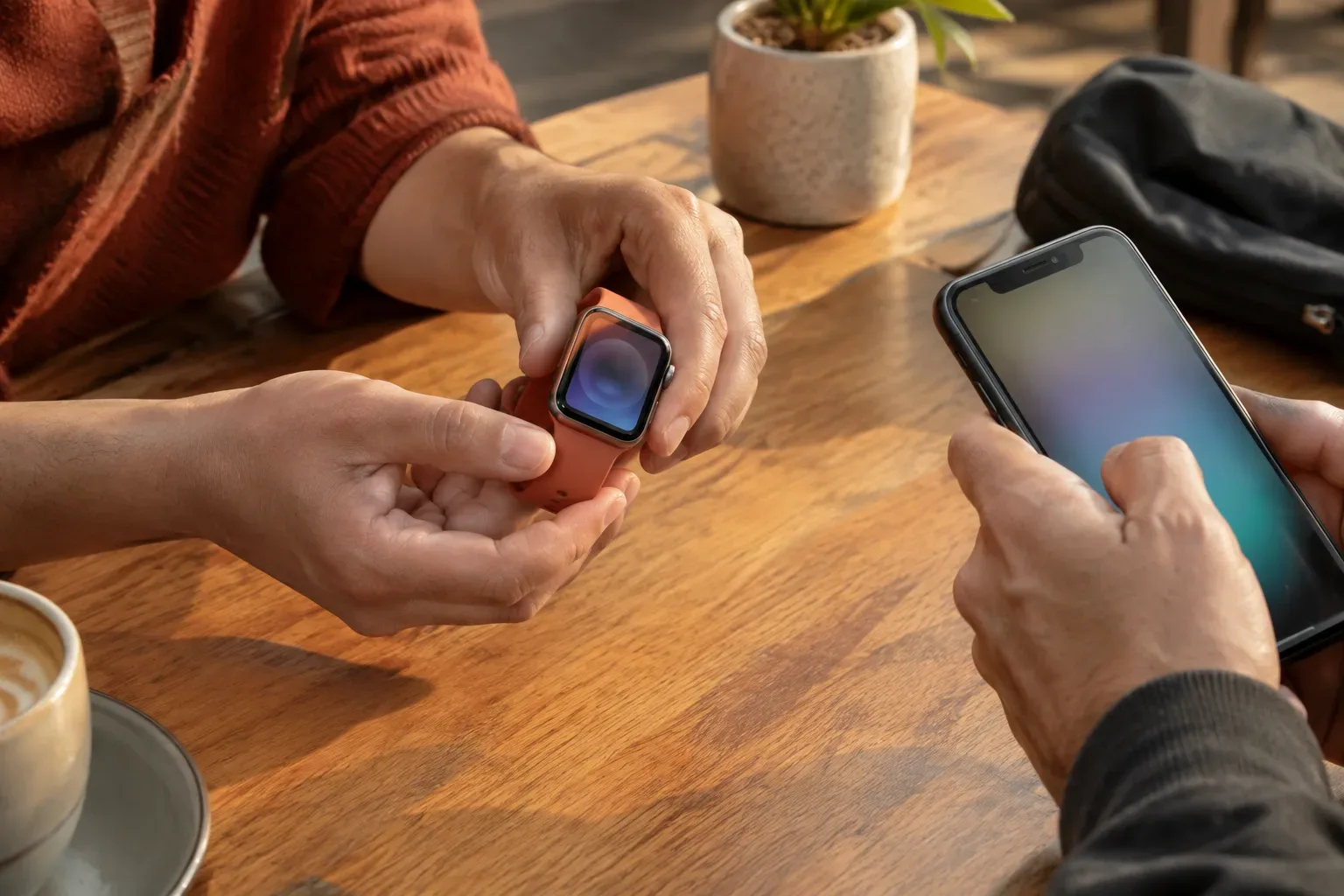
- Pair using the camera. Hold the animation that appears on the watch in front of your iPhone’s camera, positioning it in the centre of the viewfinder on the phone screen.
- Choose manual pairing if needed. If the camera can’t scan the animation, tap Pair Apple Watch Manually, then follow the instructions on your phone.
The names shown on screen may vary slightly depending on the iOS version. You can also find the official setup steps on Apple Support.
Complete the initial setup
After pairing, your iPhone will offer to set up the Apple Watch as a new watch or restore it from a previous backup. If there’s a backup you want to use, select it; for a new watch, choose Set Up as New Apple Watch.
Then work through the setup options offered. Choose which wrist you wear the watch on, accept the terms and conditions, sign in with your Apple Account, and set a passcode if you choose to or the process asks you to. Your iPhone may offer other optional settings too.
If your watch supports a mobile network connection, you may also be prompted to set up mobile service. You don’t necessarily need to do this straight away: according to Apple’s information, it can also be set up later in the Apple Watch app. Keep the two devices close together until data synchronisation is complete. Setup is finished when the watch face appears on your watch.
If a family member will use the watch
If you’re setting up the watch for someone who won’t use it with their own iPhone, look for Set Up for a Family Member. This is not the same as the usual pairing process for your own watch: the feature requires a compatible watch, Family Sharing and other conditions, and not all Apple Watch features are available in this mode of use. For details, see Apple’s guide to setting up an Apple Watch for a family member.
Fix common pairing problems
The setup message doesn’t appear
Check that your iPhone is unlocked, Bluetooth is on and the watch is near your phone. Then open the Apple Watch app and start the process by going to All Watches > Add Watch.
The camera can’t scan the animation
If scanning doesn’t work, don’t spend a long time trying with the camera: choose manual pairing and follow the steps shown on your iPhone screen.
A watch face is already displayed, or the watch asks for an old passcode
The watch may still be paired with another iPhone. In that case, you may need to unpair it or erase the watch. Don’t erase it hastily if you don’t know the details of the previous setup: erasing it alone may not remove Activation Lock.
Activation Lock appears
You may need the details for the Apple Account associated with the watch to continue. If you bought a used watch, ask the previous owner to remove it from their account. If you can’t reach them, setup may get stuck; simply erasing the watch does not replace this step.
Setup won’t complete
Check for iPhone updates and check its network connection, then restart both devices and try again. For other cases, see Apple’s pairing troubleshooting guide.
Moving to a new iPhone or using a previously owned watch
If you’re moving from an old iPhone to a new one and still have access to the old phone, first try transferring the watch as part of the setup process for your new iPhone. If that doesn’t work, you can unpair it in the Apple Watch app, then pair the watch with your new iPhone. Apple’s step-by-step instructions are on its page about pairing an Apple Watch with a new iPhone.
If you erase the watch without the iPhone it was previously paired with, Activation Lock may remain, and you may still need the associated Apple Account to set it up. That’s why, if you’re buying a used device, it’s worth checking before you buy whether the previous owner has removed the lock.
In short: pairing can usually be completed by following the on-screen instructions, provided you have an up-to-date, unlocked iPhone, Bluetooth turned on, the watch nearby and the necessary account details. If you’re having trouble with a previously used watch, first check whether it’s still linked to another iPhone or Apple Account.
Find more practical guides in the Apple Watch knowledge base and under Settings.